
Tech help for seniors
I serve Midland, Penetanguishene, Tiny, Tay (Victoria Harbour, Port McNicoll and Waubaushene), Wasaga Beach, Elmvale, Coldwater, Orillia and Barrie.
Tech Help for Seniors in Midland: Patient, Plain-English Support
Kind, unhurried help with tablets, phones, computers, and email, at your home or over a remote session. No jargon, and no question is too small.
Tell me what is going onTechnology is supposed to keep us connected to the people we love, but it does not always make that easy. Apps change without warning, passwords pile up, and a message that says your account has been locked can be genuinely frightening. I am Brent, and through TechBrent I offer patient tech help for seniors in Midland, Penetanguishene, and the surrounding area, at home or remotely, in plain English and at your pace.
You will always deal with me. I do not send someone different each time, I do not rush, and I never make anyone feel silly for asking a question. Service is by appointment, remote or at your home, cottage or business.
What I help with
Most of the help I give is not about fixing something broken. It is about making everyday technology comfortable and safe to use. Here are the areas where tech help for seniors makes the biggest difference:
- Setting up a new iPhone, iPad, or Android phone or tablet, and moving photos and contacts from the old one
- Email that works on every device, with fewer junk messages
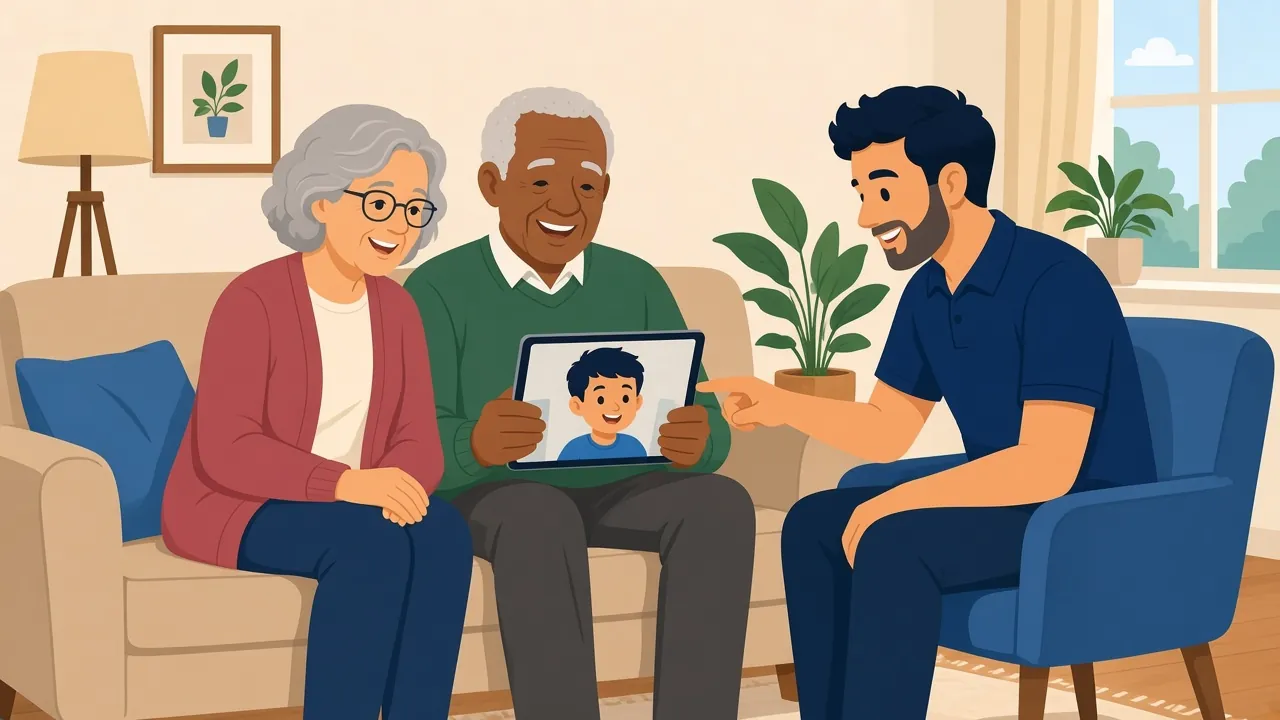
- Video calls with family, so you can see the grandchildren as easily as you can phone them
- Photos: finding them, sharing them, and making sure they are backed up
- Making text bigger, sounds clearer, and screens easier to read
- Passwords: a simple, safe way to keep track of them
- Recognising scams and knowing what to do when something looks wrong
Learning at your own pace
The difference between a device you use and a device you avoid is often just one good afternoon with someone patient. When I set something up, I show you the few things you will do most often, and we practise them together until they feel natural. If you would like written notes, I am glad to leave a simple list in plain language.
No jargon, ever
I explain things the way I would explain them to my own family. If a word like "browser" or "cloud" gets in the way, I will use a different one. The goal is for you to feel confident, not to learn technical vocabulary.
Questions are welcome
There is no such thing as a silly question about technology. Most of the things people hesitate to ask about, such as why a button moved, what a notification means, or whether a message is real, are things many other people are wondering about too.
Staying safe from scams
Scammers often target older adults, and their methods are getting more convincing. A big part of my senior tech support is helping people spot the warning signs and set up their devices so fewer scams get through in the first place.
Here are some of the most common tricks I see, and what to do about each one:
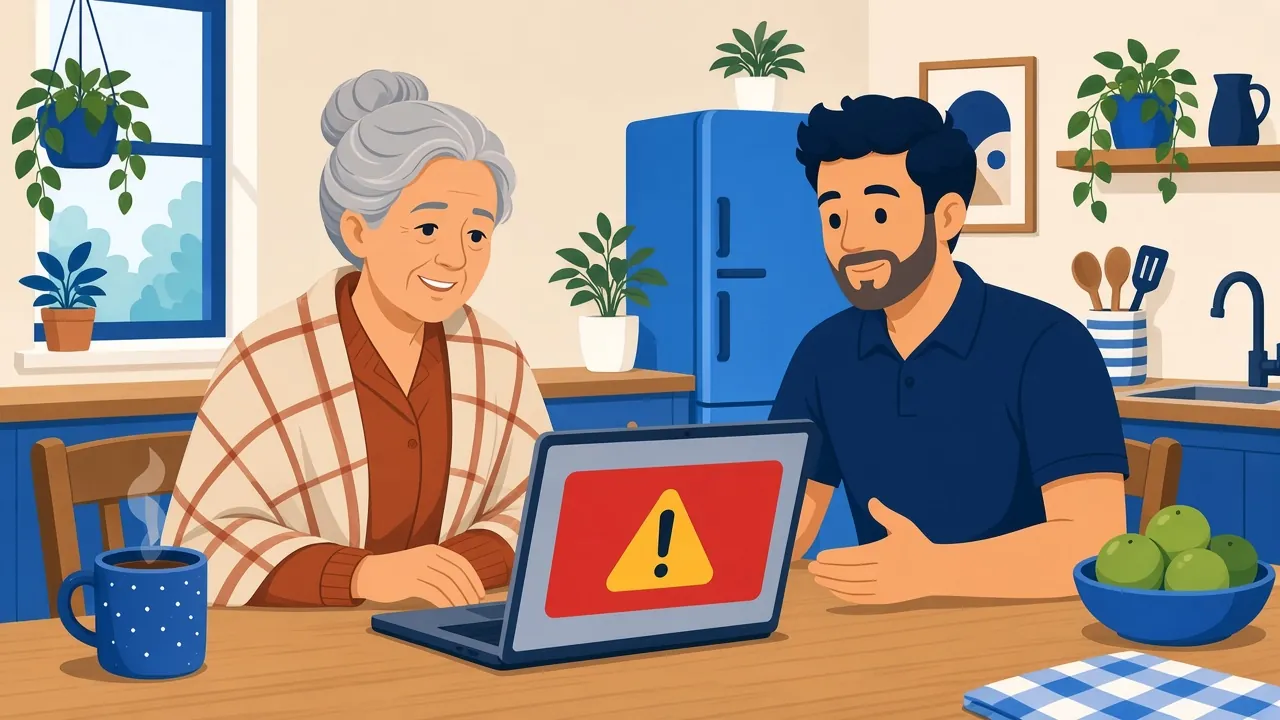
- The scary pop-up. A message fills the screen claiming your computer is infected and gives a phone number. It is fake. Do not call; close the browser or restart the computer.
- The urgent email or text. A message says your bank, Canada Post, or a delivery company needs you to click a link right now. Do not click. Contact the company using a number you already know.
- The "grandchild in trouble" call. Someone claims a family member needs money urgently and asks you to keep it secret. Hang up and call your family member directly.
- The remote-access request. A caller asks you to install a program so they can "fix" your computer. Never allow access to someone who contacted you first.
- Gift card payments. No legitimate business or government agency asks to be paid in gift cards.
If something has already happened, do not feel embarrassed. These scams are designed by professionals to catch people off guard. Get in touch, and I will help you check the computer, change passwords, and secure your accounts. My page on computer repair in Midland explains how I clean up a computer after malware or a scam pop-up.
At home or remotely, whichever suits you
Many people prefer someone in the room, especially for a new device or a first lesson. I visit homes in Midland, Penetanguishene, Tiny, Tay, Port McNicoll, Victoria Harbour, and the wider Simcoe County and Muskoka area within about 45 minutes of Midland, including Barrie and Orillia.
Once you are comfortable, remote help can be a convenient option for quick questions. With your permission, I can connect securely to your computer and you watch everything I do on your screen. You stay in control, and you can end the session at any time. I only ever connect when you have asked me to and we have arranged it together.
Help for families who live further away
I often hear from sons and daughters who live in Toronto, Ottawa, or further afield and worry about a parent's technology. It is hard to help with a tablet over the phone, and visits home are precious time that should not be spent resetting passwords.
I can be the local person who sets things up properly and is there when something changes. With your parent's agreement, I am happy to keep you informed about what was done. Here is what families often ask me to do:
- Set up a tablet so a parent can video call the family with one tap
- Create a shared photo album the whole family can add to
- Clean up a computer and protect it after a scam
- Make sure important photos and documents are backed up
- Write down passwords in a safe, agreed-upon place
For bigger setups, such as a new TV, a printer, and Wi-Fi all at once, my in-home tech support and tech concierge service covers the whole house in one visit.
Making devices easier to see, hear, and use
Phones and tablets come with excellent accessibility settings, but they are often buried several menus deep. A few small changes can make a device far more comfortable, and they are a regular part of my tech help for seniors:
- Larger, bolder text across the whole device, not just in one app
- Louder ringers and clearer notification sounds, or a gentle flash for missed calls
- Hearing aid connections, where your hearing aids support it
- Fewer icons on the home screen, so the apps you use are easy to find
- Emergency contacts and medical information set up on the phone
- Fewer pop-ups and notifications competing for your attention
None of these changes make the device any less capable. They simply make it fit the person using it, which is exactly how it should be.
Computers, too
The same thinking applies to a Windows computer or a Mac. I can enlarge the pointer and text, simplify the desktop, put shortcuts to email and photos where they are easy to find, and set the computer to update itself quietly in the background. If the computer itself is slow or misbehaving, I take care of that during the same appointment.
A familiar face for the long term
One of the advantages of working with a one-person business is continuity. The person who set up your tablet is the same person who answers your question six months later, and who already knows how your devices are arranged. For many of my clients, that familiarity is as valuable as the technical help itself.
It also means you can call on me for small things. A quick remote session to explain a new feature, or to check a message that does not look right, is often all that is needed to keep everything running smoothly. Good senior tech support is less about emergencies and more about having someone you trust when questions come up.
Respecting your privacy
Your devices hold personal information, and I treat it with care. I explain what I am doing before I do it, ask before changing anything important, and never ask for your banking details. If a task involves a sensitive account, you stay in control of the screen and the keyboard.
I also encourage a simple rule that protects people better than any software: if a message, call, or pop-up makes you feel rushed or frightened, stop and check before you act. A real bank, government office, or family member will understand if you take a moment to call them back on a number you already trust.
How to get started
Getting help is meant to be easy. Here is how it works:
- You, or a family member, send a short note through the TechBrent contact form describing what you need.
- I reply by email with a plan and suggest a time.
- We meet at your home or connect remotely, whichever you prefer.
- I help, explain, and make sure you are comfortable before we finish.
Service is by appointment, Monday to Friday. If writing a note feels like a hurdle, ask a family member or friend to send it for you; that is completely fine.
Technology should feel like a help, not a hassle
Whether it is a new iPad, an email problem, or a message you are not sure about, I would be glad to help with patience and in plain English. Service is by appointment, remote or at your home, cottage or business. Send me a note, and I will write back with a plan.
FAQ
Common questions
Do you come to the house?
Yes. I visit homes in Midland, Penetanguishene, Tiny, Tay, and the wider area within about 45 minutes of Midland, including Barrie and Orillia. Remote help is also available. Service is by appointment.
Can you set up an iPad so my mother can video call the family?
Yes. I set up iPads and other tablets so video calls and photos are simple, adjust text size and sound, and take time to practise with her until it feels easy.
I think I fell for a scam. What should I do?
Stop any contact with the scammer, do not pay anything more, and contact your bank if money or card details were involved. Then send me a note, and I will help check the computer and secure your accounts.
Can my son or daughter arrange the help for me?
Absolutely. Family members often send the first note. With your agreement, I can keep them informed about what was done.
Ready when you are
Service is by appointment, remote or at your home, cottage or business. Tell me what is going on and I will write back with a plan.
Get help