

Backup & recovery
Data Recovery in Midland: Get Your Files Back and Keep Them Safe
Photos, tax folders, the one drive nobody copied. I recover files when it is still possible, and set up backups you will actually keep using.
Tell me what is going onThe moment a computer will not start, most people are not thinking about the computer at all. They are thinking about the photos of the kids, the tax folder, the novel in progress, or the business records that exist nowhere else. I am Brent, and through TechBrent I offer data recovery in Midland and the surrounding area, along with something even more valuable: backups that quietly protect you so the next bad day is not a crisis.
I want to be honest from the start about what I can and cannot do, because with lost files, clear expectations matter. Service is by appointment, remote or at your home, cottage or business.
What software-side data recovery can do
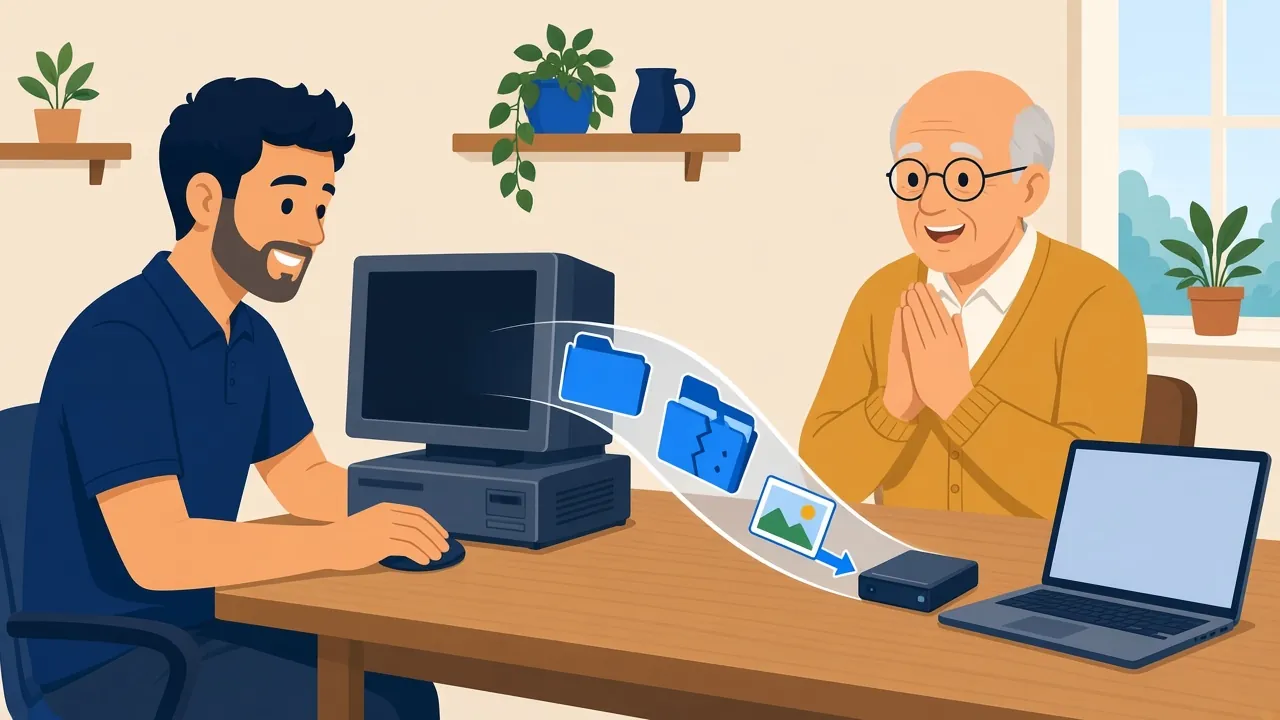
Many lost-file situations are recoverable with the right care and the right tools, without sending anything to a laboratory. The kind of file recovery I handle includes:
- Copying files off a Windows PC or Mac that will no longer start
- Recovering recently deleted files and photos, when they have not yet been overwritten
- Getting files back from a backup drive, Time Machine, OneDrive, iCloud, or Google
- Rescuing files from a user account that will not load properly
- Moving files safely from an old computer before it is retired or recycled
Where my limits are, and why I tell you
TechBrent offers software-side recovery, not clean-room disk work. That distinction matters. If a drive has physically failed, for example if it clicks, grinds, is not detected at all, or has been dropped or damaged by water, repeatedly trying software tools can make things worse.
In those cases, I stop, explain what I am seeing, and tell you plainly that the drive needs a specialist recovery lab. I would much rather give you that honest answer than risk the only copy of your photos. Here is how I think about the difference:
- Software problem, healthy drive: the computer will not start, but the drive itself is fine. Recovery is usually very achievable.
- Deleted files: often recoverable if you stop using the device quickly, because new data can overwrite what was deleted.
- Failing drive: sometimes recoverable with careful, minimal handling, but it is time-sensitive.
- Physically damaged drive: this needs a specialist lab, and I will say so rather than attempt it.
What to do right now if you have lost files
If you are reading this because something just went wrong, a few simple steps can greatly improve your chances:
- Stop using the device. Every new file, update, or download can overwrite what you are trying to recover.
- Do not install recovery programs on the same drive you are trying to recover from.
- If a drive is clicking or making unusual sounds, turn it off and leave it off.
- Do not reinstall Windows or macOS, or reset the computer, until the files are safe.
- Check whether your files might already be in OneDrive, iCloud, Google Drive, or an old backup drive.
- Send me a note through the TechBrent contact form describing what happened.
Deleted photos on a phone
Phones keep deleted photos in a "Recently Deleted" or "Trash" album for a limited time, and many people have cloud photo backup switched on without realising it. Before assuming photos are gone, it is worth checking both. I can help with that over a quick remote session or as part of a visit.
How files usually go missing
In my experience, lost files rarely disappear in dramatic ways. Most cases of data recovery in Midland start with something ordinary:
- A Windows or macOS update that fails partway through and leaves the computer unable to start
- A folder dragged to the wrong place, or deleted while tidying up the desktop
- A cloud service that was syncing deletions as well as new files
- An old laptop or external drive that simply wore out after years of service
- A phone that was lost, broken, or reset before its photos were backed up
- Malware or a scam that left the computer in a state nobody wanted to touch
Knowing how the files went missing helps me choose the safest way to get them back, so the more you can tell me in your first note, the better.
Moving to a new computer without losing anything
Replacing a computer is one of the riskiest moments for your files, simply because so much is moving at once. Old email archives, browser bookmarks, saved passwords, and photos stored in unexpected folders are easy to leave behind. When I handle a move, I check the usual hiding places, copy everything to the new machine, and confirm with you that it has all arrived before the old computer is wiped or recycled. It is a small amount of extra care that prevents a great deal of regret, and it means your new computer starts life with a proper backup setup from day one.
Backups: the better kind of recovery
The best data recovery is the one you never need, because you already have a copy. Good backup setup is one of the most valuable things I do, and it is usually far less complicated than people expect. My aim is a backup habit that is boring on purpose: it runs on its own, you do not have to remember it, and it is there when you need it.
What a good backup looks like
I follow a simple principle: important files should exist in more than one place, and at least one of those places should be outside the house. A typical setup includes:
- An automatic local backup to an external drive, such as Time Machine on a Mac or File History on Windows
- A cloud copy through OneDrive, iCloud, or Google, so a fire, flood, or theft does not take everything
- Phone photos syncing automatically, so they are safe even if the phone is lost
- A clear sense of what lives in the cloud and what stays in the house
Testing that it actually works
A backup you have never restored from is a hope, not a plan. Part of every backup setup I do is restoring a real file with you, so you can see it working. I also show you how to check the date of the last successful backup, which is the single most useful habit for catching problems early.
External drives and USB sticks
A single external drive or USB stick is a handy place to keep a copy of your files, but it should never be the only copy. These small drives are easy to lose, easy to drop, and they wear out like any other device. If your only backup lives on one of them, I will help you add a second copy somewhere safer, and show you how to check that both are current. It takes only a few minutes to set up, and it turns a fragile arrangement into a dependable one.
Backups for cottages and second homes
Seasonal properties around Tiny and Tay often have a computer or tablet that sits idle for months, sometimes with patchy internet. That makes automatic cloud backup less reliable. I can set up a plan that suits how the cottage is actually used, so photos taken over the summer make it safely home in the fall.
Small office files
Many people in the area run a business from home: a bookkeeper in Midland, a contractor in Penetanguishene, a consultant with a home office in Tay. Losing client files or accounting records is more than an inconvenience. I can set up a straightforward backup for a home or small office, so business documents are protected along with the family photos, and walk you through how to get a file back on your own.
Recovery as part of a bigger fix
Data recovery is often the first step in a larger repair. When a Windows PC will not start, I make the files safe before I attempt any repair, so nothing is lost if a reinstall turns out to be necessary. My page on computer repair in Midland explains how I handle the software side of PCs and laptops. The same careful order applies to Macs: files first, then the fix.
Where I help
I visit homes, cottages, and home offices in Midland, Penetanguishene, Tiny, Tay, and the wider Simcoe County and Muskoka area within about 45 minutes of Midland, including Barrie and Orillia. Many backup and cloud-recovery tasks can also be done remotely, anywhere in Canada, as long as the computer can get online.
I serve Midland, Penetanguishene, Tiny, Tay (Victoria Harbour, Port McNicoll and Waubaushene), Wasaga Beach, Elmvale, Coldwater, Orillia and Barrie.
How it works
- Tell me what happened and what you are trying to recover.
- I reply by email with an honest assessment and a plan.
- We book a time, remote or in person.
- I recover what can be recovered, carefully and in the right order.
- Before I finish, I set up a backup so this does not happen again.
Let's keep your files safe
Whether you are facing a computer that will not start, a folder you deleted by mistake, or you simply want peace of mind that your photos are protected, I would be glad to help. Service is by appointment, remote or at your home, cottage or business. Send me a note, and I will write back with an honest plan. For an overview of everything I do, see the TechBrent services page.
FAQ
Common questions
Can you recover files from a computer that won't start?
Often, yes. If the drive itself is healthy, I can usually copy your files off a Windows PC or Mac that will not start before attempting any repair.
What if my hard drive is clicking or physically damaged?
Turn it off and leave it off. A physically failing drive needs a specialist recovery lab. TechBrent offers software-side recovery only, and I will tell you honestly if a drive needs a lab.
Can deleted photos be recovered?
Sometimes. Check the Recently Deleted or Trash album and your cloud photo service first. On computers, stop using the device right away to improve the chances of recovery.
What is the best way to back up my computer?
Keep important files in more than one place: an automatic backup to an external drive plus a cloud copy. I set this up and test a restore with you so you know it works.
Ready when you are
Service is by appointment, remote or at your home, cottage or business. Tell me what is going on and I will write back with a plan.
Get help